Welcome to the next level of musical discovery. While prePiano One focused on individual notes and animal symbols, prePiano Two introduces the concept of "families" of notes. This is where a child begins to understand how music is actually built.
Prerequisites: Is your child ready?
This app is designed for children who have successfully mastered prePiano One. Specifically, they should be comfortable with one of the following:
- The names of the animals from the previous app (A through G).
- The first seven letters of the alphabet and basic color names (Red and White).
If they are still struggling to identify the notes, it is best to spend more time with prePiano One before moving forward.
The Foundation: Chord Families
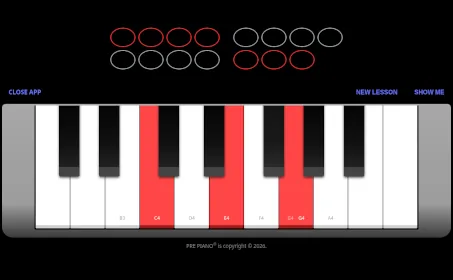
In this app, we move away from single notes and toward chord families. We use color-coded keys to show how certain notes naturally "belong" together.
The Red Family (C Major)
The red keys represent the C Major chord family. These are the notes C, E, and G.
The White Family (G7 Major)
To the left of each red key, you will find the members of the G7 Major chord family. These are the notes B, D, F, and G.
The "Bridge" Note: The Magic of G
You will notice that the G key appears in both families. This is intentional. The G key serves as a bridge between the Red Family and the White Family. Understanding this "double functionality" is a fundamental concept in music theory, and seeing it visually helps the child grasp how different chords connect.
How to Play
1. Generate a Lesson
Press the NEW LESSON button to generate a fresh melody. Much like the Octopus in the first app, this creates a unique musical sequence for the child to explore.
2. Show Me How to Play
Once a lesson is generated, press the SHOW ME button. This is the heart of the PRE PIANO method. The keys will animate, showing the child exactly how to play the melody. Watching the animation helps the child internalize the physical movement and rhythm of playing.
The Extra Keys
You will see more keys on the keyboard than are used in the lessons. This serves two purposes:
- Visual Context: It provides a realistic view of a piano keyboard so the child can eventually transition to a real instrument.
- Creative Freedom: For more advanced children, these extra keys allow them to experiment with notes outside of the lesson.
The Art of Practice
The Importance of Speed
Playing the right notes is only half of the lesson. The real learning happens when the child plays the right notes at a slow but steady speed. We recommend following the tempo of the SHOW ME button.
If a melody feels too difficult, encourage the child to play in small groups (for example, four notes at a time). Once they have mastered a group, they can join them together to form a full 15-note melody.
The "Natural Ending"
You may notice that our melodies consist of 15 notes rather than 16. We intentionally leave out the sixteenth note to give the melody a natural, satisfying musical ending.
Pacing and Consistency
Musical ears grow slowly. To build a solid foundation, we suggest the following:
- Aim for 2 to 3 lessons per day.
- Keep sessions short: We recommend a maximum of 15 minutes of total screen time, including listening.
- Consistency is key: Aim to play 5 days a week.
- Do not rush: Ideally, a child should spend at least two weeks working through this app.
The Mentor's Code
As a mentor, your influence is more important than the software. We believe in a specific philosophy of guidance:
- Encourage heavily: Encouragement is 80% of the teaching process.
- Never teach, preach, or criticize: We are here to support discovery, not to enforce perfection.
- Be flexible: Some days are better for music than others. If a child is not engaged, it is okay to stop. Rome was not built in a day.
Note: prePiano apps are specifically designed to be outgrown, not to hinder learning.
Technical Note: Our apps are high-quality web experiences, not software that requires installation. You can navigate them just like any other website. Use your browser's Back button to return to a previous page, or use the CLOSE APP button to exit the experience.